

Klipper Shake&Tune plugin documentation

When perfecting 3D prints and tuning your printer, there is all that resonance testing stuff that Shake&Tune will try to help you with. But keep in mind that it's part of a complete process, and Shake&Tune alone won't magically make your printer print at lightning speed. Also, when using the tools, it's important to get back to the original need: good prints.
While there are some ideal goals described in this documentation, you need to understand that it's not always possible to achieve the ideal resonance graphs due to a variety of factors unique to each printer, such as precision of the assembly, quality and brand of components, components wear, etc. Even a different accelerometer can give different results. But that's not a problem; the primary goal is to produce clean and satisfactory prints. If your test prints look good and meet your standards, even if the response curves aren't perfect, you're on the right track. Trust your printer and your print results more than chasing ideal graphs! If it's satisfactory, there's no need for further adjustments.
First, you might want to check out the input shaping and tuning generalities documentation to understand how it all works and what to look for when taking these measurements.
Resonance testing
A standard tuning workflow might look something like this:
%%{
  init: {
    'theme': 'base',
    'themeVariables': {
      'lineColor': '#232323',
      'primaryTextColor': '#F2055C',
      'secondaryColor': '#D3D3D3',
      'tertiaryColor': '#FFFFFF'
    }
  }
}%%

flowchart TB
    subgraph Tuning Workflow
    direction LR
    start([Start]) --> tensionBelts[Tension your\nbelts as best\n as possible]
    checkmotion --> tensionBelts
    tensionBelts --> SnT_Belts[Run Shake&Tune\nbelts comparison tool]
    SnT_Belts --> goodbelts{Check the documentation\nDoes belts comparison profiles\nlook decent?}
    goodbelts --> |YES| SnT_IS[Run Shake&Tune\naxis input shaper tool]
    goodbelts --> |NO| checkmotion[Fix your mechanical assembly\nand your motion system]
    SnT_IS --> goodIS{Check the documentation\nDoes axis profiles and\n input shapers look decent?}
    goodIS --> |YES| SnT_Vibrations[Run Shake&Tune\nvibration profile tool]
    goodIS--> |NO| checkmotion
    SnT_Vibrations --> goodvibs{Check the documentation\nAre the graphs OK?\nSet the speeds in\nyour slicer profile}
    goodvibs --> |YES| pressureAdvance[Tune your\npressure advance]
    goodvibs --> |NO| checkTMC[Dig into TMC drivers\ntuning if you want to]
    goodvibs --> |NO| checkmotion
    checkTMC --> SnT_Vibrations
    pressureAdvance --> extrusionMultiplier[Tune your\nextrusion multiplier]
    extrusionMultiplier --> testPrint[Do a test print]
    testPrint --> printGood{Is the print good?}
    printGood --> |YES| unicorn{want to chase unicorns}
    printGood --> |NO -> Underextrusion / Overextrusion| extrusionMultiplier
    printGood --> |NO -> Corner humps and no ghosting| pressureAdvance
    printGood --> |NO -> Visible VFAs| SnT_Vibrations
    printGood --> |NO -> Ghosting, ringing, resonance| SnT_IS
    unicorn --> |NO| done
    unicorn --> |YES| SnT_Belts
    end

    classDef standard fill:#70088C,stroke:#150140,stroke-width:4px,color:#ffffff;
    classDef questions fill:#FF8D32,stroke:#F24130,stroke-width:4px,color:#ffffff;
    classDef startstop fill:#F2055C,stroke:#150140,stroke-width:3px,color:#ffffff;
    class start,done startstop;
    class goodbelts,goodIS,goodvibs,printGood,unicorn questions;
    class tensionBelts,checkmotion,SnT_Belts,SnT_IS,SnT_Vibrations,pressureAdvance,extrusionMultiplier,testPrint,checkTMC standard;
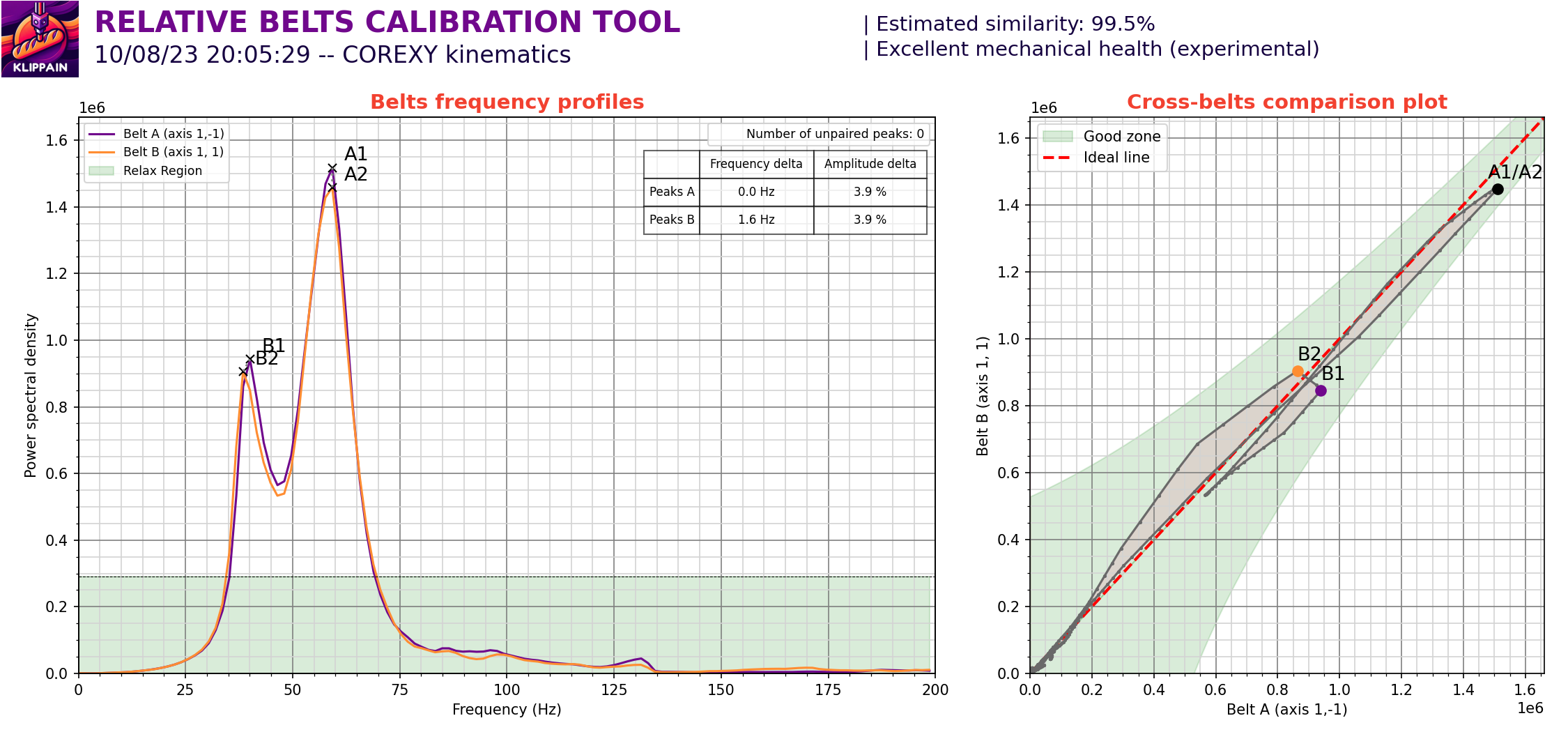
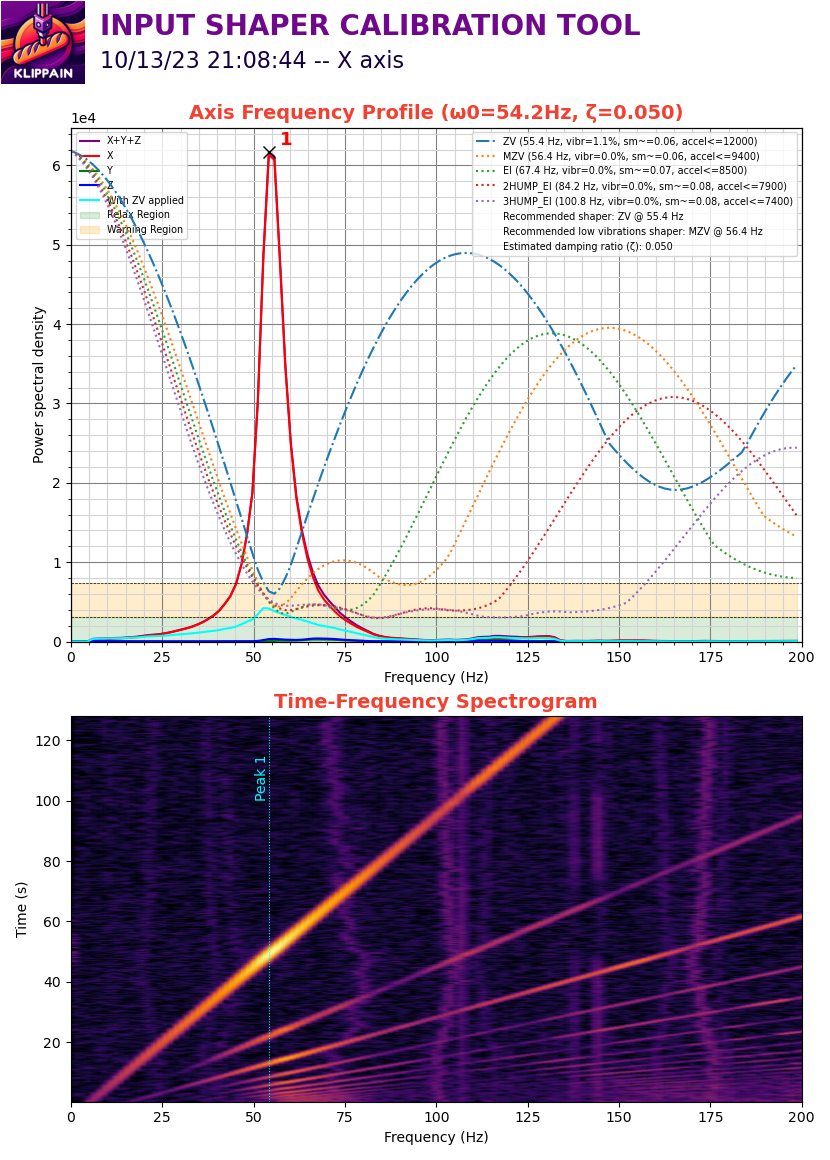
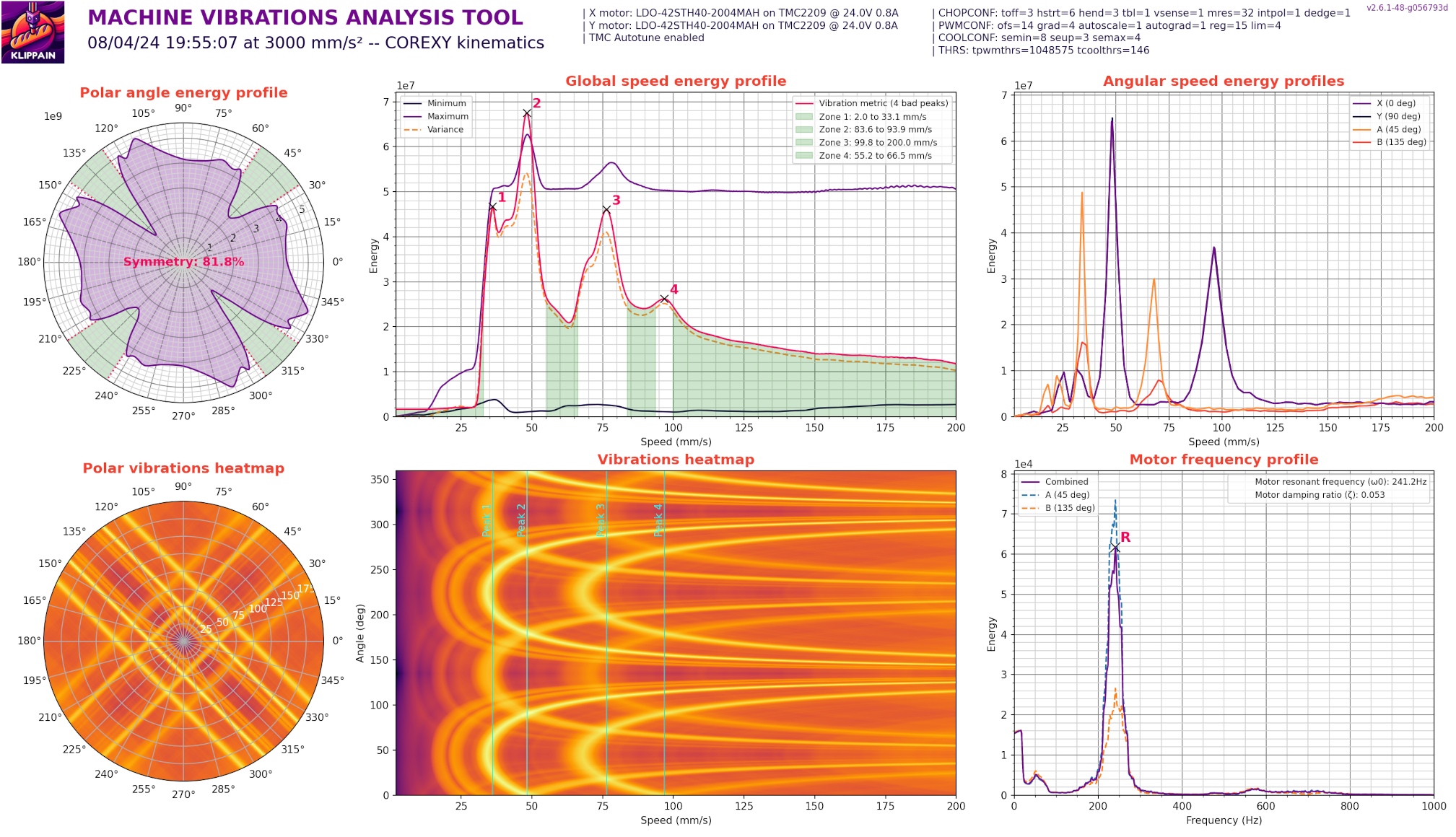
You can access the documentation for each graph type by clicking on it in the table below.
| Belt response comparison | Axis input shaper graphs | Vibrations profile |
|---|---|---|
 |
 |
 |
Additional macros
AXES_MAP_CALIBRATION (experimental)
All graphs generated by this package show plots based on accelerometer measurements, typically labeled with the X, Y, and Z axes. It's important to note that if the accelerometer is rotated, its axes may not align correctly with the machine axes, making the plots more difficult to interpret, analyze, and understand. The AXES_MAP_CALIBRATION is designed to automatically measure the alignement of the accelerometer in order to set it correctly.
Note
:
This misalignment doesn't affect the measurements because the total sum across all axes is used to set the input shaper filters. It's just an optional but convenient way to configure Klipper's
[adxl345](or whichever accelerometer you have) "axes_map" parameter.
Here are the parameters available when calling this macro:
| parameters | default value | description |
|---|---|---|
| Z_HEIGHT | 20 | z height to put the toolhead before starting the movements. Be careful, if your accelerometer is mounted under the nozzle, increase it to avoid crashing it on the bed of the machine |
| SPEED | 80 | speed of the toolhead in mm/s for the movements |
| ACCEL | 1500 (or max printer accel) | accel in mm/s^2 used for all the moves |
| TRAVEL_SPEED | 120 | speed in mm/s used for all the travels moves |
| ACCEL_CHIP | None | accelerometer to use for the test. If unset, it will automatically select the proper accelerometer based on what is configured in your [resonance_tester] config section |
The machine will move slightly in +X, +Y, and +Z, and output in the console: Detected axes_map: -z,y,x.
Use this value in your printer.cfg config file:
[adxl345] # replace "adxl345" by your correct accelerometer name
axes_map: -z,y,x
EXCITATE_AXIS_AT_FREQ
The EXCITATE_AXIS_AT_FREQ macro is particularly useful for troubleshooting mechanical vibrations or resonance issues. This macro allows you to maintain a specific excitation frequency for a set duration, enabling hands-on diagnostics. By touching different components during the excitation, you can identify the source of the vibration, as contact usually stops it.
Here are the parameters available when calling this macro:
| parameters | default value | description |
|---|---|---|
| FREQUENCY | 25 | excitation frequency (in Hz) that you want to maintain. Usually, it's the frequency of a peak on one of the graphs |
| DURATION | 10 | duration in second to maintain this excitation |
| ACCEL_PER_HZ | None | accel per Hz value used for the test. If unset, it will use the value from your [resonance_tester] config section (75 is the default) |
| AXIS | x | axis you want to excitate. Can be set to either "x", "y", "a", "b" |
| TRAVEL_SPEED | 120 | speed in mm/s used for all the travel movements (to go to the start position prior to the test) |
| Z_HEIGHT | None | Z height wanted for the test. This value can be used if needed to override the Z value of the probe_point set in your [resonance_tester] config section |
Complementary ressources
- Sineos post in the Klipper knowledge base